
AUREYN / RINGTONES
A little music,
closer to you.
A small part of a song, with you every day.
A GIFT FOR THE LISTENERS
Free ringtones
Five songs. Yours to keep. Choose your phone below.

FREE RINGTONE / AVAILABLE NOW
Holding My Ground
Smooth fade in / fade out.
↓ Android · MP3320 kbps · 29.05 sec · 1.11 MB↓ iPhone · M4RAAC 256 kbps · 29.05 sec · 940 KB · No ZIP
Preparing the direct M4R download…
For iPhone setup: GarageBand MP3 ↓
Saving a file does not install it.

FREE RINGTONE / AVAILABLE NOW
Enough for Today
Smooth fade in / fade out.
↓ Android · MP3320 kbps · 29.05 sec · 1.11 MB↓ iPhone · M4RAAC 256 kbps · 29.05 sec · 933 KB · No ZIP
Preparing the direct M4R download…
For iPhone setup: GarageBand MP3 ↓
Saving a file does not install it.

FREE RINGTONE / AVAILABLE NOW
Electric Fever
Smooth fade in / fade out.
Preparing the direct M4R download…
For iPhone setup: GarageBand MP3 ↓
Saving a file does not install it.

FREE RINGTONE / AVAILABLE NOW
Still Reachin Back
Smooth fade in / fade out.
Preparing the direct M4R download…
For iPhone setup: GarageBand MP3 ↓
Saving a file does not install it.

FREE RINGTONE / AVAILABLE NOW
Only You
Smooth fade in / fade out.
Preparing the direct M4R download…
For iPhone setup: GarageBand MP3 ↓
Saving a file does not install it.
CHOOSE YOUR TRACK
Premium Ringtones (Singles)
$0.99 USD per song · Android MP3 + iPhone M4R included. Preview any track before buying.

AUREYN SINGLES
EDGE OF US
$0.99 USD · 29-second ringtone edit
8-second preview · Full edit after purchase
AndroidMP3 · 320 kbps
iPhoneM4R · AAC 256 kbps

AUREYN SINGLES
THE USUAL
$0.99 USD · 29-second ringtone edit
8-second preview · Full edit after purchase
AndroidMP3 · 320 kbps
iPhoneM4R · AAC 256 kbps

AUREYN SINGLES
STILL
$0.99 USD · 29-second ringtone edit
8-second preview · Full edit after purchase
AndroidMP3 · 320 kbps
iPhoneM4R · AAC 256 kbps

ONLY EVER YOU
Running to Your Light
$0.99 USD · 29-second ringtone edit
8-second preview · Full edit after purchase
AndroidMP3 · 320 kbps
iPhoneM4R · AAC 256 kbps

ONLY EVER YOU
One Look Love
$0.99 USD · 29-second ringtone edit
8-second preview · Full edit after purchase
AndroidMP3 · 320 kbps
iPhoneM4R · AAC 256 kbps

ONLY EVER YOU
Sanctuary
$0.99 USD · 29-second ringtone edit
8-second preview · Full edit after purchase
AndroidMP3 · 320 kbps
iPhoneM4R · AAC 256 kbps

LATIN HEAT
Flame on the Floor
$0.99 USD · 29-second ringtone edit
8-second preview · Full edit after purchase
AndroidMP3 · 320 kbps
iPhoneM4R · AAC 256 kbps

LATIN HEAT
Sunlight on Your Skin
$0.99 USD · 29-second ringtone edit
8-second preview · Full edit after purchase
AndroidMP3 · 320 kbps
iPhoneM4R · AAC 256 kbps

LATIN HEAT
Ignite The Night
$0.99 USD · 29-second ringtone edit
8-second preview · Full edit after purchase
AndroidMP3 · 320 kbps
iPhoneM4R · AAC 256 kbps
THE PREMIUM COLLECTION / AVAILABLE NOW
Premium Ringtones (Bundles)
Three songs. One collection. Android + iPhone.

AUREYN / THE RINGTONE COLLECTION
ONLY EVER YOU
One heart. No one else.
A love that never looks away.
$2.49 USD · 3 songs · Save $0.48 vs. singles
Get all 3 · $2.493 tracks · MP3 + M4R · ~29 seconds each
LISTEN / 8-SECOND PREVIEWS

AUREYN / THE RINGTONE COLLECTION
LATIN HEAT
Warm rhythms. A little after dark.
Three Latin-inspired moments.
$2.49 USD · 3 songs · Save $0.48 vs. singles
Get all 3 · $2.493 tracks · MP3 + M4R · ~29 seconds each
LISTEN / 8-SECOND PREVIEWS
Each collection includes six individual files: MP3 320 kbps + M4R AAC 256 kbps, with fade in / out. Personal use. No ZIP required. Use the MP3 for GarageBand.
AUREYN / VISUAL SETUP GUIDES
Your ringtone, step by step.
Choose your phone and follow one numbered picture at a time. Gold circles show the control to look for. Screen details are illustrations; real manufacturer screenshots are shown separately.
Reviewed against Apple, Google and Samsung instructions · 3 November 2026. Menu wording and layout can vary with your software and language.
Android · Files by Google · 5 picture steps
↗ Open the full-size android picture guide
Set your Android ringtone
Files by Google method. Use the downloaded MP3, not an M4R or a streaming link.

Do you have a Samsung Galaxy?
Files by Google and Samsung My Files are different apps. If you cannot find the illustrated menu, use the separate Galaxy route below.
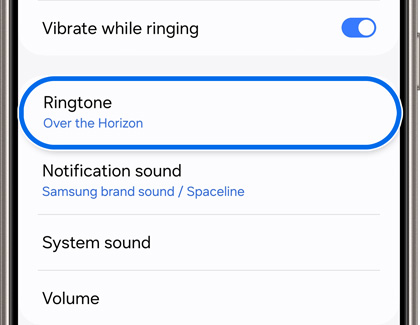
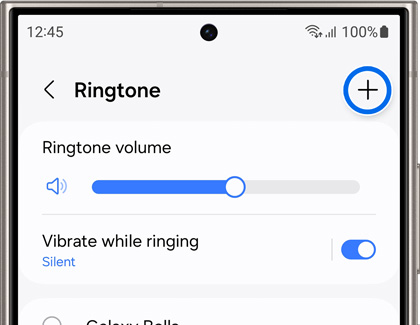
Samsung Galaxy · Settings method · 4 picture steps
↗ Open the full-size galaxy picture guide
Use Galaxy Settings instead
No file-manager menu needed. Download your MP3 first.

Does the sound start at the wrong place?
If available, turn off “Play selected highlights only”. AUREYN files already contain the finished short edit and fades.
iPhone · GarageBand · 12 picture steps
↗ Open the full-size iphone picture guide
Set your iPhone ringtone
Start with “iPhone setup audio · MP3” under your chosen song.
The Android MP3 is also compatible audio for GarageBand on iPhone. The separate M4R is a ringtone-format download; saving it does not install it. This guide uses the MP3 route, with no ZIP and no computer.

If your screen looks different
No “Create New Audio Recording”? From GarageBand’s My Songs browser, look for New Audio Recording. Otherwise create a song, choose Audio Recorder and open Tracks.
File missing or greyed out? Confirm it is the downloaded MP3 in Files, not a streaming song or the M4R. Download any cloud-only file locally first.
Only part of the ringtone imports? Check Song Sections (+ at the ruler) → Section A → Automatic, then import again. Starting via New Audio Recording normally sets Automatic for you.
Preserve the original fades. The AUREYN download is already faded. Leave GarageBand’s additional Fade Out off; its fade is much longer.
Exported but still hearing the old ringtone? Choose Use sound as → Standard Ringtone after export, or select the exported name in Settings → Sounds & Haptics → Ringtone.


Apple’s official ringtone instructions → · Create a new audio recording →
Download & file details
A ringtone is a short edit.
The finished files will be short excerpts, not full songs. Each available download will clearly list the song, edit duration and included file formats.
Choose your phone.
Android · MP3
Listen to the preview, then download the MP3 file. Select it in your phone’s ringtone settings. Exact steps vary by phone.
iPhone · M4R
Listen to the same preview, then choose the iPhone file. Follow the included iPhone setup guide; downloading a file does not install it automatically.
Preview the actual ringtone.
Free previews play the complete ringtone. Premium previews play 8 seconds; complete edits are delivered after purchase. Playback starts only when you press play.
File details
Android uses MP3 files. iPhone setup depends on your device and software version; follow the illustrated setup guide above. Downloading a file does not automatically set it as your ringtone.


